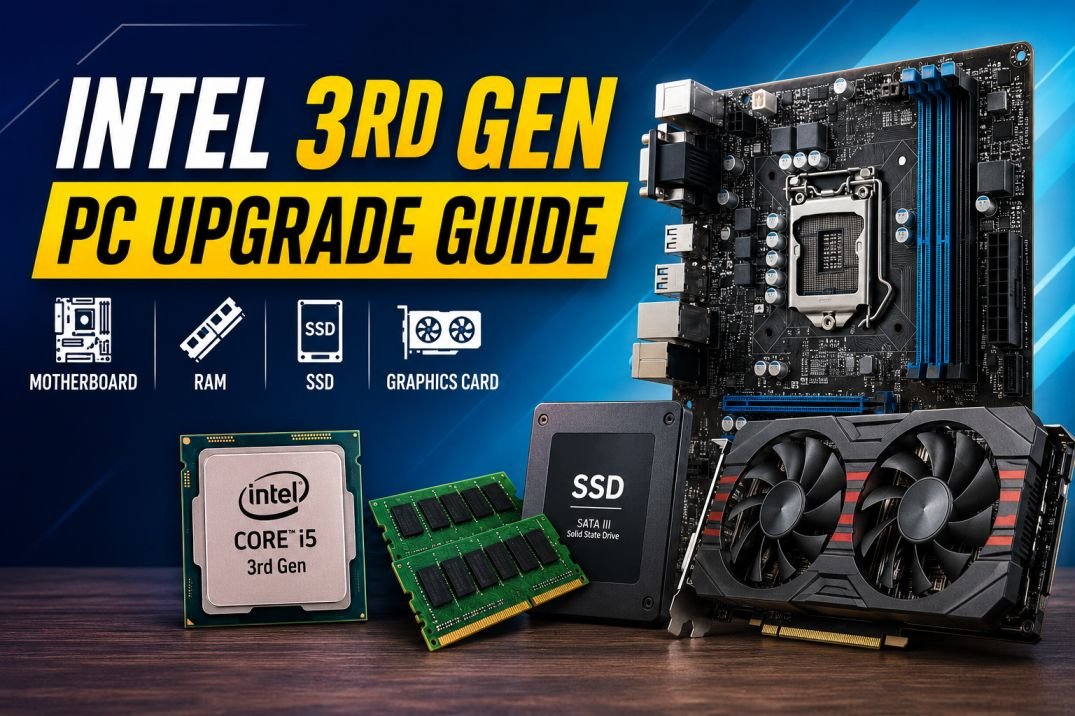
Intel 3rd Generation PC Upgrade Guide: Everything You Need to Know Before Buying a Motherboard, RAM, SSD or Graphics Card
If you still have an Intel 3rd Generation PC, don’t let anyone tell you it’s completely outdated.
I still see these systems running in schools, offices, cyber cafés, printing shops, and even small businesses. Many people use them every day for browsing, Office work, CorelDRAW, Photoshop, accounting software, and even light gaming.
The problem isn’t the processor. The problem is that people often buy the wrong upgrade. We are going to discuss this in detail.
Someone installs DDR4 RAM in a DDR3 system. Someone buys a motherboard that doesn’t support their processor. Others spend thousands on a graphics card that the processor can’t fully utilize.
If you’re planning to upgrade your Intel 3rd Generation PC, this guide will help you choose the right parts without wasting money.
Which Intel Processors Are 3rd Generation?
Intel’s 3rd Generation processors are based on the Ivy Bridge architecture and use the LGA1155 socket.
Some popular models include:
Intel Core i3
- i3-3220
- i3-3240
Intel Core i5
- i5-3330
- i5-3450
- i5-3470
- i5-3550
- i5-3570
- i5-3570K
Intel Core i7
- i7-3770
- i7-3770K
If your processor is one of these models, this guide is for you.
Always Start with the Processor
Whenever you’re upgrading an old PC, the processor should be the first thing you identify.
Why?
Because it decides almost everything else.
Once you know your processor, you can easily find the correct:
- Motherboard
- RAM
- Storage options
- Graphics card compatibility
Think of the processor as the foundation of your PC. Every other component is chosen around it.
What is LGA? Understanding CPU Sockets Before Buying a Motherboard
If you’ve ever searched for a motherboard online, you’ve probably come across terms like LGA1155, LGA1200, or LGA1700. For beginners, these numbers can be confusing, but they are one of the most important things to understand before buying a motherboard.
Let’s make it simple.
What Does LGA Mean?
LGA stands for Land Grid Array. It is the type of CPU socket used on Intel motherboards.
The CPU socket is the place where the processor is installed. Every Intel processor is designed to fit into a specific socket, so choosing the correct socket is just as important as choosing the right processor.
Think of it like a house key. Even if two keys look similar, they won’t open the wrong lock. In the same way, a processor will only fit into the socket it was designed for.
Why is the Socket So Important?
Before buying a motherboard, always check the processor’s socket.
For example:
- Intel Core i5-3570 uses LGA1155
- Intel Core i7-3770 uses LGA1155
This means both processors will work only with LGA1155 motherboards.
If you accidentally buy an LGA1200 or LGA1700 motherboard, your processor won’t fit at all. It doesn’t matter if both are Intel products—they are physically different.
Does the Socket Decide the RAM?
Not directly.
The socket decides which processor can be installed, while the motherboard determines the RAM type.
However, because motherboards are designed around a specific socket and processor generation, the RAM type is usually fixed for that platform.
For example:
| Processor | Socket | Supported RAM |
|---|---|---|
| Intel 2nd Gen | LGA1155 | DDR3 |
| Intel 3rd Gen | LGA1155 | DDR3 |
| Intel 4th Gen | LGA1150 | DDR3 |
| Intel 10th Gen | LGA1200 | DDR4 |
| Intel 12th Gen | LGA1700 | DDR4 or DDR5 (depends on motherboard) |
So, while the socket itself doesn’t “choose” the RAM, it leads you to a motherboard that supports the correct memory type.
Common Intel CPU Sockets
Here’s a quick reference that can help you identify compatible motherboards.
| Intel Processor Generation | CPU Socket | Common Motherboard Chipsets |
|---|---|---|
| 1st Generation | LGA1156 | H55, P55 |
| 2nd Generation | LGA1155 | H61, H67, P67, Z68 |
| 3rd Generation | LGA1155 | H61, B75, H77, Z77 |
| 4th Generation | LGA1150 | H81, B85, H87, Z87, H97, Z97 |
| 6th Generation | LGA1151 | H110, B150, H170, Z170 |
| 7th Generation | LGA1151 | H110*, B250, H270, Z270 |
| 8th Generation | LGA1151 (300 Series) | H310, B360, H370, Z370 |
| 9th Generation | LGA1151 (300 Series) | B365, H370, Z390 |
| 10th Generation | LGA1200 | H410, B460, H470, Z490 |
| 11th Generation | LGA1200 | H510, B560, H570, Z590 |
| 12th Generation | LGA1700 | H610, B660, H670, Z690 |
| 13th Generation | LGA1700 | B760, H770, Z790 |
| 14th Generation | LGA1700 | B760, H770, Z790 |
Note: Some generations share the same socket but are not always compatible with every motherboard chipset. For example, Intel 8th and 9th Generation processors use LGA1151, but they do not work on most 6th or 7th Generation motherboards because Intel changed chipset support.
Disclosure: As an Amazon Associate, DenHex may earn a commission from qualifying purchases at no additional cost to you.
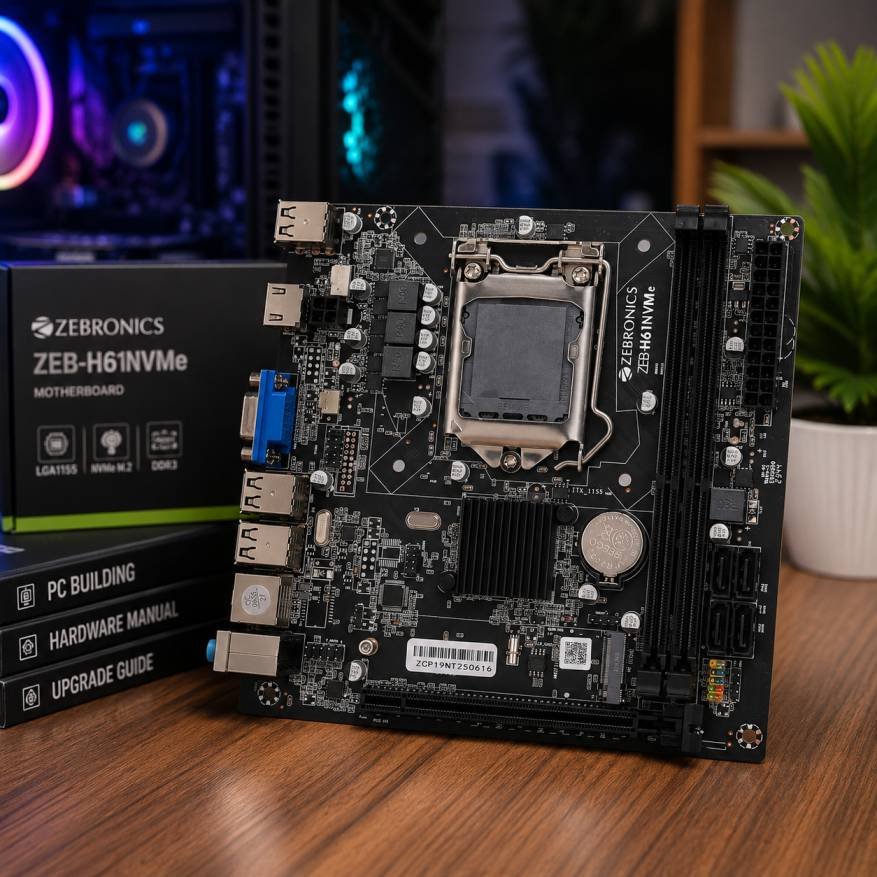
LGA1155 Explained
Since this guide focuses on Intel 3rd Generation processors, let’s look at LGA1155.
If your processor is one of these:
- Intel Core i3-3220
- Intel Core i5-3470
- Intel Core i5-3570
- Intel Core i7-3770
Then you need a motherboard with an LGA1155 socket.
The most common compatible chipsets are:
- H61 (Budget)
- B75 (Best Value)
- H77 (More Features)
- Z77 (Overclocking & Enthusiasts)
Choosing any of these chipsets ensures your Intel 3rd Generation processor will fit correctly.
Why Do 2nd and 3rd Generation Intel Processors Use the Same LGA1155 Socket?
This is one of the most common questions beginners ask.
If both Intel 2nd Generation and 3rd Generation processors use the LGA1155 socket, then why don’t they use exactly the same motherboards?
The answer is simple.
A socket and a chipset are two different things.
The socket decides whether the processor can physically fit into the motherboard.
The chipset decides what features the motherboard offers and which processors it officially supports.
Think of it like buying a car.
Two cars may use the same engine mount, so the engine fits perfectly in both. However, one car may come with basic features, while the other includes a touchscreen, better suspension, cruise control, and more safety features.
The engine fits in both cars, but the overall features are different.
Motherboards work in a very similar way.
Intel 2nd Generation (Sandy Bridge)
When Intel launched its 2nd Generation processors, these were the most common chipsets:
- H61
- H67
- P67
- Z68
All of them used the LGA1155 socket.
Intel 3rd Generation (Ivy Bridge)
A year later, Intel introduced the 3rd Generation processors.
The company decided to keep the same LGA1155 socket, so users wouldn’t need a completely new platform.
However, Intel also introduced newer chipsets with additional features, including:
- B75
- H77
- Z77
- Q75
- Q77
These motherboards were designed specifically for Intel 3rd Generation processors and offered better connectivity and newer technologies.
Then Why Does H61 Also Support Intel 3rd Generation?
This is where many people get confused.
Although the H61 chipset was originally released for Intel 2nd Generation processors, many motherboard manufacturers later released BIOS updates that added support for Intel 3rd Generation CPUs.
That means an H61 motherboard can often run both 2nd Gen and 3rd Gen processors.
However, there’s one important condition.
The motherboard must have the correct BIOS version installed.
If the BIOS hasn’t been updated, a 3rd Generation processor may not boot at all.
This is especially important when buying a second-hand H61 motherboard.
Always ask the seller:
“Has the BIOS been updated to support Intel 3rd Generation processors?”
So Why Is B75 Usually Recommended?
Even though both H61 and B75 can run Intel 3rd Generation processors, they are not equal.
B75 was released later and includes several improvements over H61.
| Feature | H61 | B75 |
|---|---|---|
| Native Intel 3rd Gen Support | No (BIOS update may be required) | Yes |
| USB 3.0 | No | Yes |
| SATA 6Gb/s | Limited | Yes |
| Better Expansion Options | No | Yes |
If you’re buying a motherboard today, B75 is usually the better choice because it supports Intel 3rd Generation processors out of the box and offers more modern features.
A Simple Rule to Remember
If you’re ever confused, remember these two lines:
- The socket tells you if the processor will fit.
- The chipset tells you what the motherboard can do.
Quick Buying Tip
Before ordering a motherboard online, always check these three things:
✅ Processor model (Example: i5-3570)
✅ CPU socket (Example: LGA1155)
✅ Motherboard chipset (Example: B75)
If all three match, you’re buying the right motherboard.
Which Motherboard Should You Buy?
Intel 3rd Generation processors only work with LGA1155 motherboards.
This is the first thing you should check before buying anything.
Many beginners accidentally buy newer motherboards because they look similar or are recommended by local sellers. Unfortunately, newer Intel motherboards use completely different sockets, so your processor simply won’t fit.
For Intel 3rd Generation, these are the compatible chipsets:
- H61
- B75
- H77
- Z77
Each one is designed for different types of users.
H61 – Best for Tight Budgets
If you only use your computer for browsing, Office work, online classes, or simple software, the H61 motherboard is still a good budget option.
It’s inexpensive and easy to find in the second-hand market.
However, don’t expect many modern features.
B75 – The Best Overall Choice
If someone asks me which motherboard to buy for an Intel 3rd Generation processor, my answer is almost always B75.
It offers a better balance of features than H61 without becoming too expensive.
Compared to H61, you usually get:
- Better storage support
- USB 3.0
- Improved stability
- Better upgrade options
For most users, this is the motherboard worth buying.
H77 and Z77
These motherboards are aimed at enthusiasts.
If you’re using an unlocked processor like the i5-3570K or i7-3770K, the Z77 chipset offers overclocking support and additional features.
For regular users, however, B75 is usually the smarter investment.
Can You Use DDR4 RAM?
No.
This is probably the biggest mistake people make.
Intel 3rd Generation processors are designed for DDR3 memory only.
DDR4 RAM won’t fit physically, and even if it could, the motherboard doesn’t support it.
Always look for DDR3 RAM when upgrading this platform.
How Much RAM Do You Really Need?
The answer depends on how you use your PC.
8GB DDR3
Perfect for browsing, Office work, online classes, and everyday tasks.
16GB DDR3
A great choice if you use CorelDRAW, Photoshop, multiple browser tabs, or light video editing.
32GB DDR3
Only worth considering if your motherboard supports it and your workload actually needs that much memory.
For most people, 16GB is the sweet spot.
What About RAM Speed?
You’ll commonly find DDR3 RAM in two speeds:
- 1333MHz
- 1600MHz
Both will work.
If the price difference is small, choose 1600MHz.
It’s the most recommended option for Intel 3rd Generation systems.
Should You Upgrade to an SSD?
Absolutely.
If your PC still uses a traditional hard drive, installing an SSD will probably give you the biggest performance improvement of any upgrade.
You’ll notice:
- Faster Windows startup
- Quicker software loading
- Better overall responsiveness
- Less waiting during everyday tasks
Even an older Intel 3rd Generation PC feels surprisingly fast after moving from an HDD to an SSD.
Choosing the Right Graphics Card
This is another area where many people get confused.
A common question is:
“My motherboard uses DDR3 RAM. Do I also need a DDR3 graphics card?”
The answer is No.
The RAM installed on your motherboard and the memory inside a graphics card are completely different technologies.
For example:
- Motherboard RAM: DDR3
- Graphics Card Memory: GDDR5 or GDDR6
These have nothing to do with each other.
So What Actually Matters?
Instead of worrying about DDR versions, check these four things:
- Does your motherboard have a PCIe x16 slot?
- Is your power supply powerful enough?
- Will the graphics card fit inside your cabinet?
- Can your processor keep up with the graphics card?
If all four answers are yes, you’re good to go.
Recommended Graphics Cards
For an Intel 3rd Generation system, these cards offer good value.
| Graphics Card | Best For |
|---|---|
| GTX 750 Ti | Basic gaming |
| GTX 1050 Ti | Budget gaming |
| GTX 1650 | 1080p gaming |
| RX 570 | Best second-hand value |
| RX 580 | Better gaming performance |
These cards match the performance of the platform without spending unnecessary money.
What About RTX Cards?
Yes, you can install an RTX graphics card.
But that doesn’t always mean you should.
For example, an RTX 3060 will work perfectly fine in an Intel 3rd Generation system.
However, the processor becomes the limiting factor in many modern games and applications.
Instead of paying extra for performance you can’t fully use, it often makes more sense to buy a balanced graphics card like the GTX 1650 or RX 570.
Don’t Forget the Power Supply
Many upgrades fail because people ignore the power supply.
Before buying a graphics card, check how much power it requires.
As a general rule:
- GTX 1050 Ti → 400W PSU
- GTX 1650 → 450W PSU
- RX 570 → 500W PSU
- RX 580 → 550W PSU
A reliable power supply is just as important as the graphics card itself.
My Recommended Upgrade Path
If you’re upgrading on a budget, don’t buy everything at once.
This is the order I recommend:
- Replace the HDD with an SSD.
- Upgrade to 16GB DDR3 RAM.
- Add a graphics card if needed.
- Upgrade the processor only if you’re currently using an i3.
This approach gives the best performance improvement for the least amount of money.
Final Thoughts
Intel 3rd Generation PCs may be old, but they still have plenty of life left for everyday computing.
The key is choosing compatible hardware instead of buying parts based on advertisements or random recommendations.
Before purchasing anything, remember these four simple rules:
- Buy an LGA1155 motherboard.
- Use DDR3 RAM.
- Install an SSD if you still use an HDD.
- Choose a graphics card that matches both your processor and your power supply.
A well-planned upgrade can easily give your old PC a new lease on life without spending the cost of an entirely new system.